Laser marking Videos,  Photos, and Photo examples

We’ve answered some of the most frequently asked questions we have received. If there’s anything else you want to know, or for additional explanation, please submit a quetion.


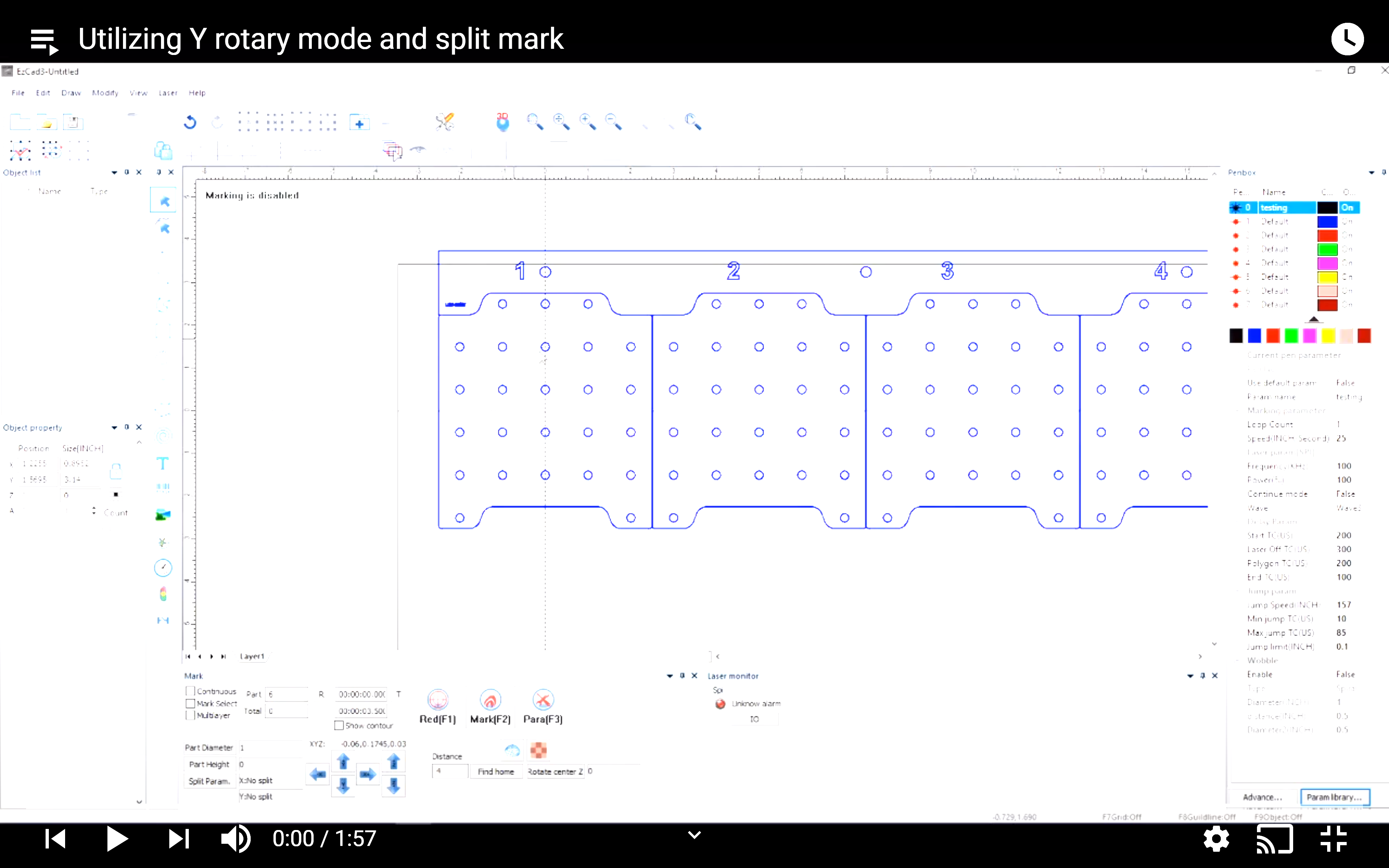
1. How to use the rotary axis? (ROTARY)

1.Select the rotary for the fixture type.
2.Enter you desired text or shape.
Note can not exceed the circumference of the part that is being marked.
3. Enter the part diameter and select apply.
4.Select zsplitmark under the (laser) pull down tab.
5.Select mark by split line.
6.Left click the mouse to put the split lines in your desire spots, right click on the mouse to remove the split lines, or left click and hold on the mouse to move the split lines.
7.Or deselect mark by split line and use split size for an even split size all the way around the part.
8.Select mark.

Back to top


2. How come the machine didn’t mark? (NO MARK, NOT MARKING)

1.Check to make sure the scan head is in focus.
Physically measure between your part and the out rim on the scan head lens, to verify the correct working distance. * See working distance chart.
2.Check to make sure all doors are fully closed and adjusted properly.
3.Check to make sure that all of your laser parameters are set correctly.
4.Check to make sure you have the correct fixture type selected.

Video Example
Back to top


3. How come the part doesn’t have an even mark? (UNEVEN MARK, BAD MARK)

1.Clean scan head lens with a Zeiss alcohol swab www.bhphotovideo.com
2.Check to make sure the lens is level to your fixture.

Back to top


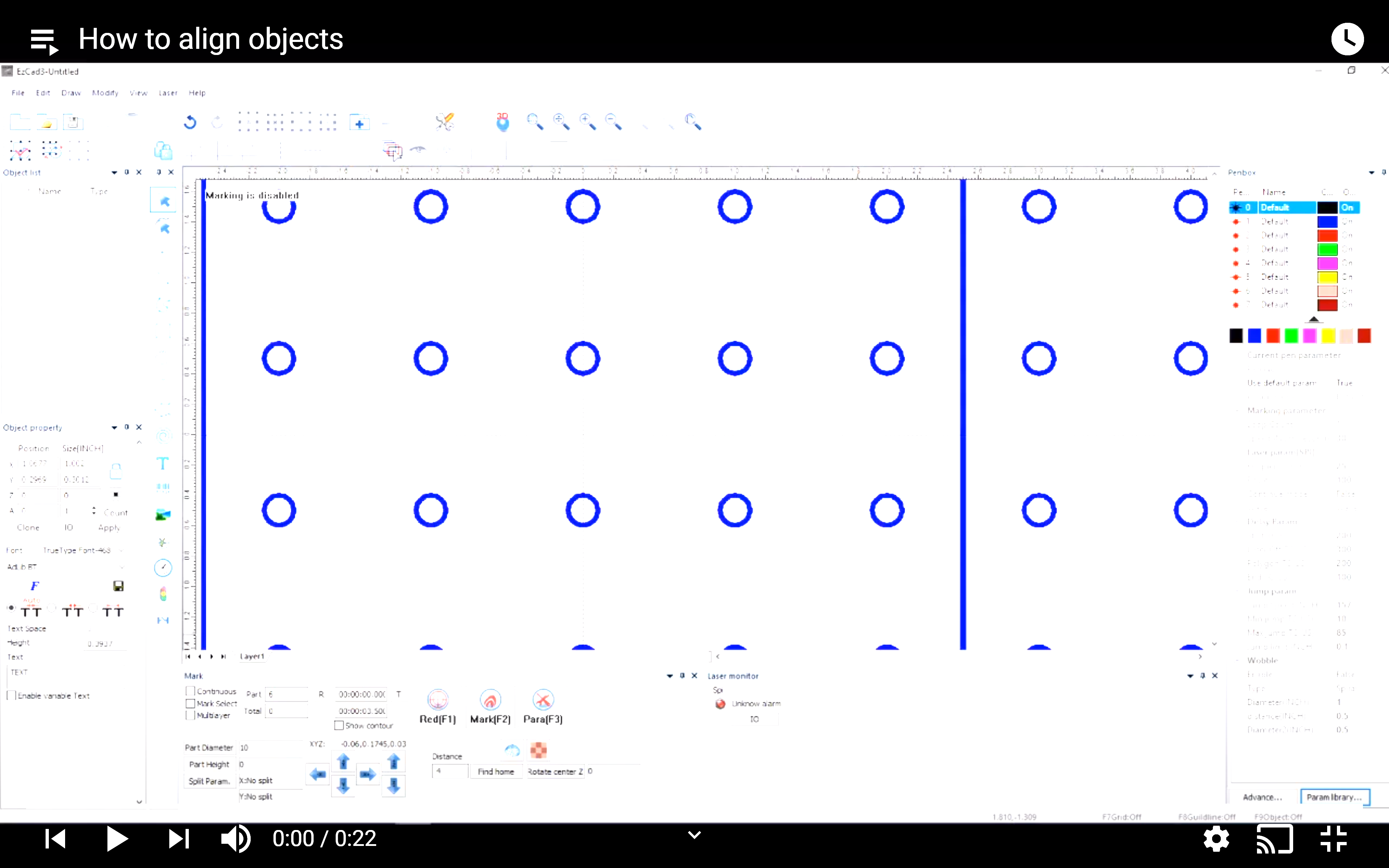
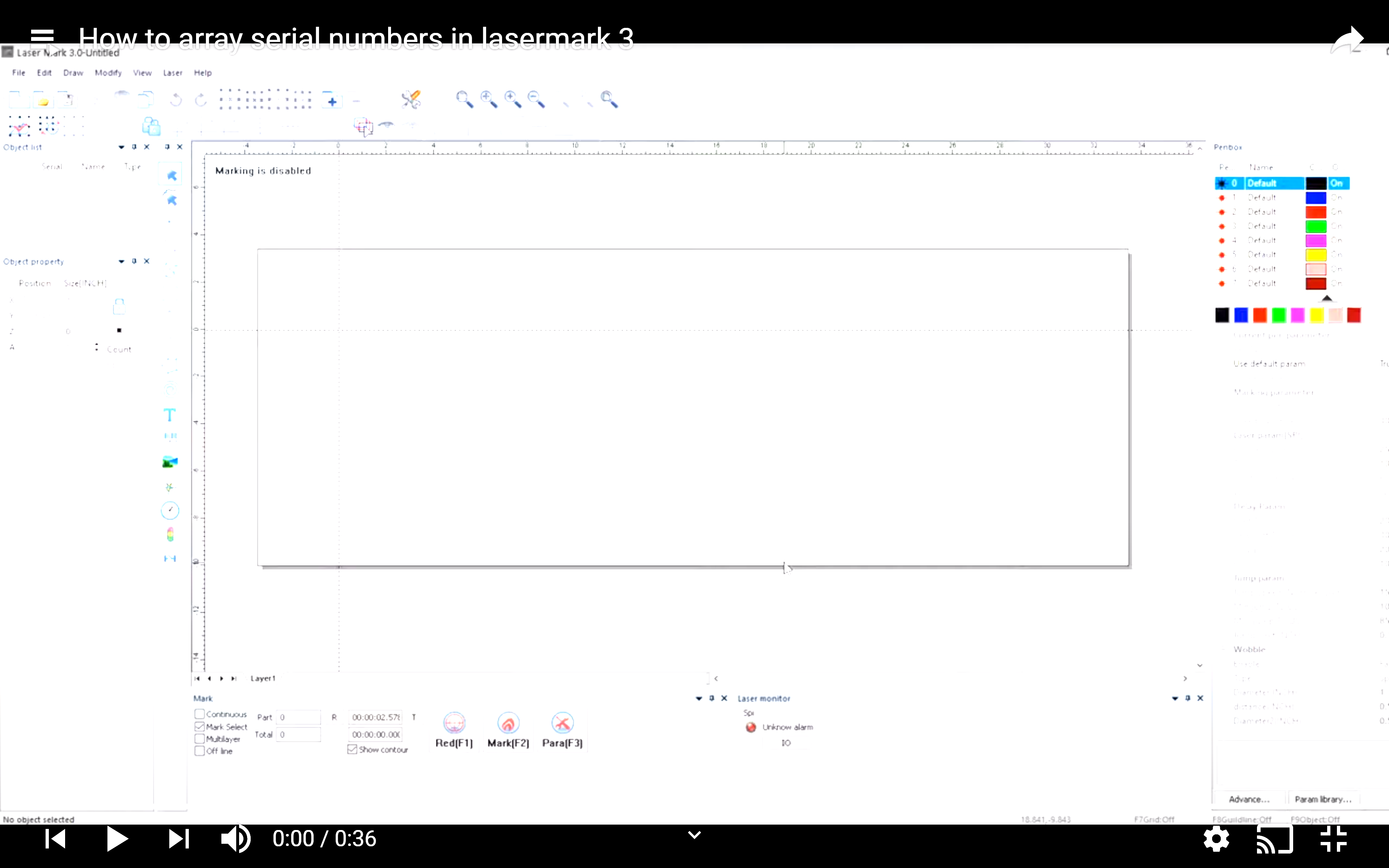
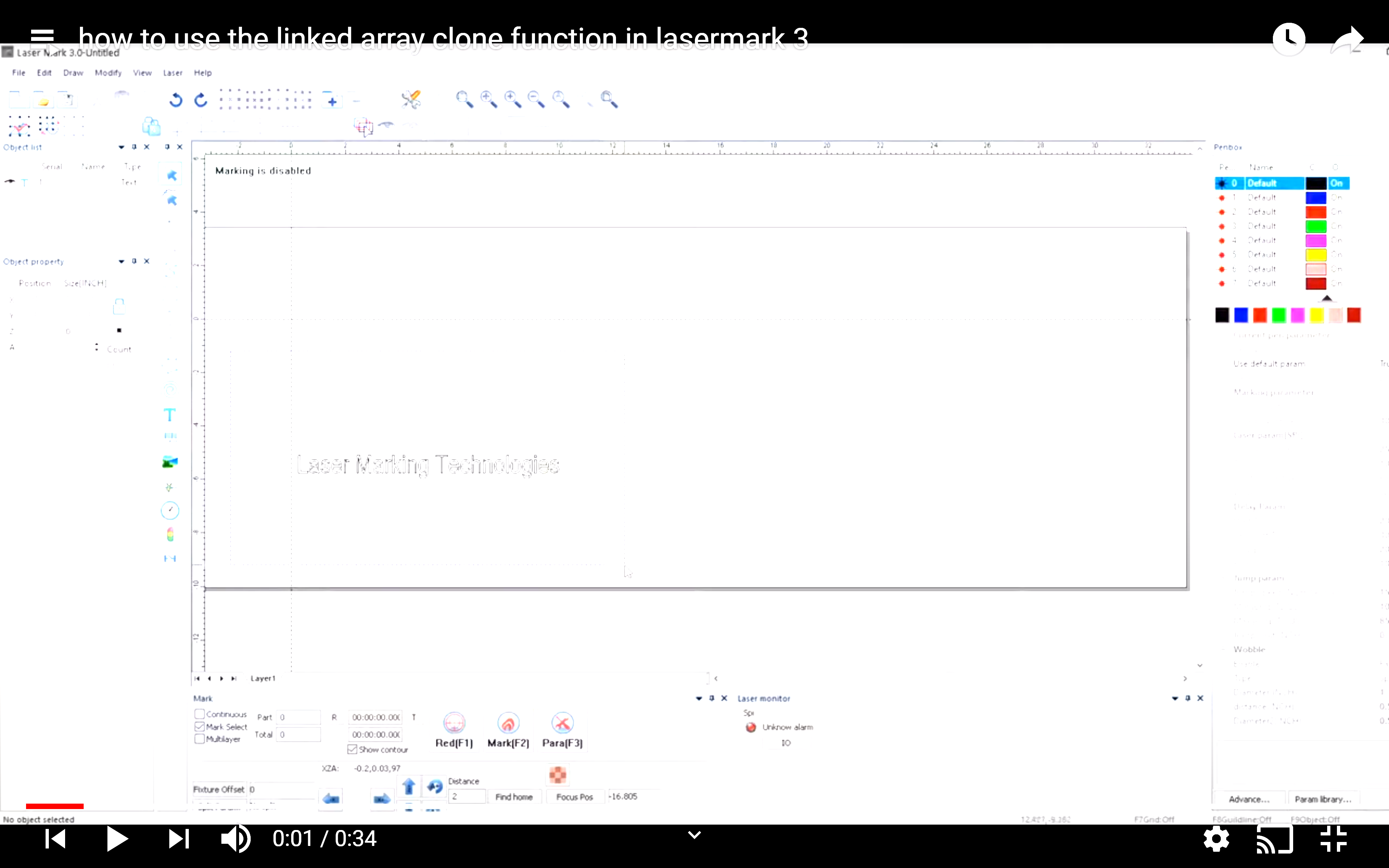
4. How to use the array function in the software? (MULTIPLE, ARRAY)

1.Enter you desired text or shape at the correct part height.
2.Select desired fixture type.
3.Select array under the (modify) pull down tab.
4.Select the array spacing and quantity.
5.Select ok.
6.Select red for the red pointer to verify position.
7.Adjust position if necessary.
8.Select mark.

Back to top


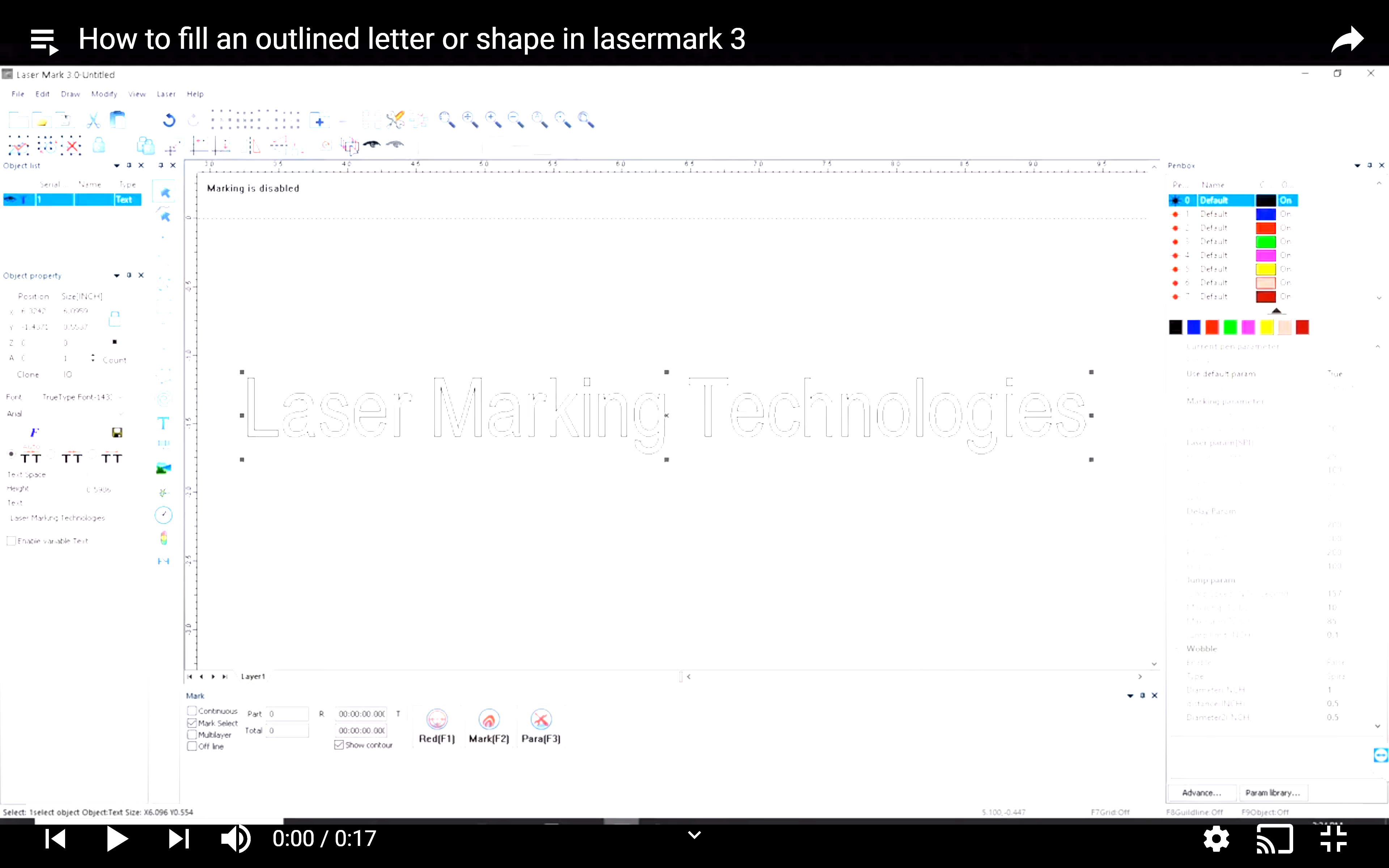
5. How to fill in an outlined letter or shape? (FILL, HATCH)

1.Enter you desired text or shape at the correct part height.
2.Select desired fixture type.
3.Select the hatch icon ("").
4.Select enable.
5.Select mark contour.
6.Use the default line spacing of (0.002”).
7.Select ok.
8.Select red for the red pointer to verify position.
9.Adjust position if necessary.
10.Select mark.

Back to top


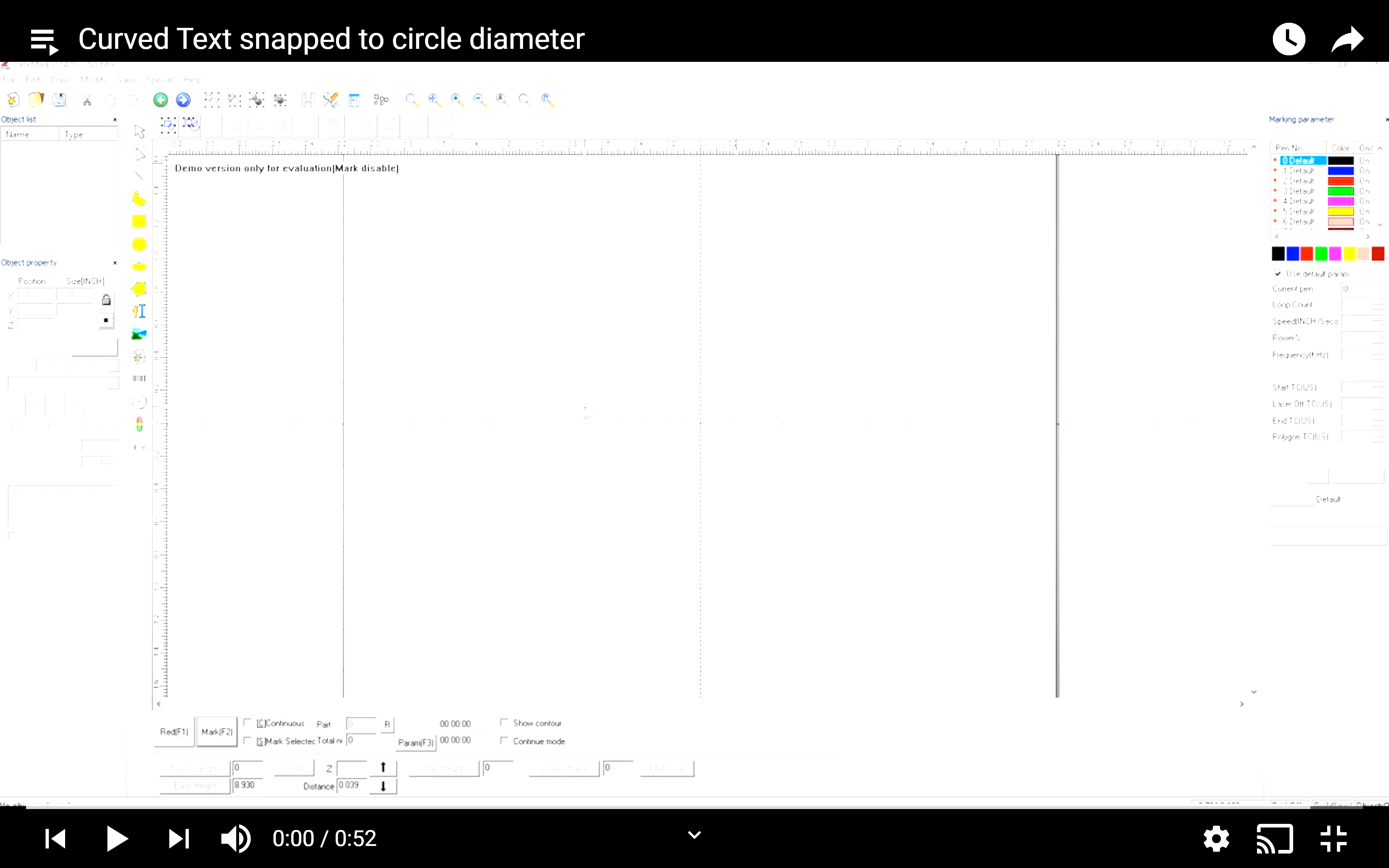
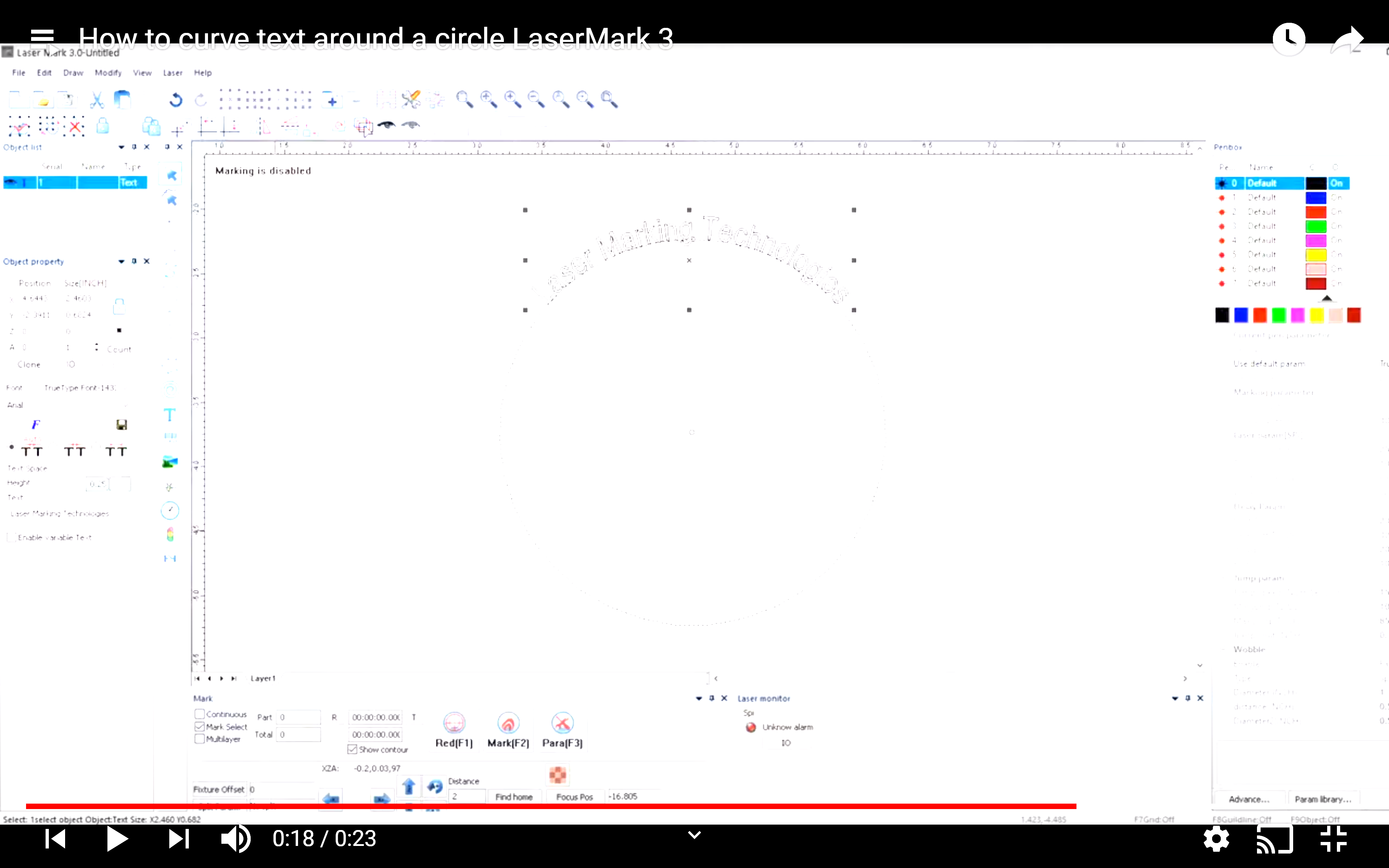
6. How to curve text around a circle? (ROUND TEXT, CIRCLE TEXT, CURVE TEXT)

1.Enter you desired text at the correct part height.
2.Select desired fixture type.
3.Select the font icon ( "").
4.Check circle text.
5.Enter the desired circle diameter.
Note (aspect ratio of the text must be locked).
6.Select red for the red pointer to verify position.
7.Adjust position if necessary.
8.Select mark.

Back to top


7. Meaning of the power(A). (PARAMETERS, SETTINGS, POWER, CURRENT)

10 = 100% power
9 = 90% power
8 = 80% power
7 = 70% power
6 = 60% power
5 = 50% power
4 = 40% power
3 = 30% power
2 = 20% power
1 = 10% power
0 = 0% power

Back to top


8. What if I accidentally delete something from my page? (UNDO, RECOVER)

1.Click the “undo” button located at the top of the screen ""

Back to top


9. How do I insert text? (INSERT TEXT)

1.Click on the text icon on the left hand side of the screen. ""
2.Click on your screen where you would like the text to be located.
3.Change font settings as desired

""

Back to top


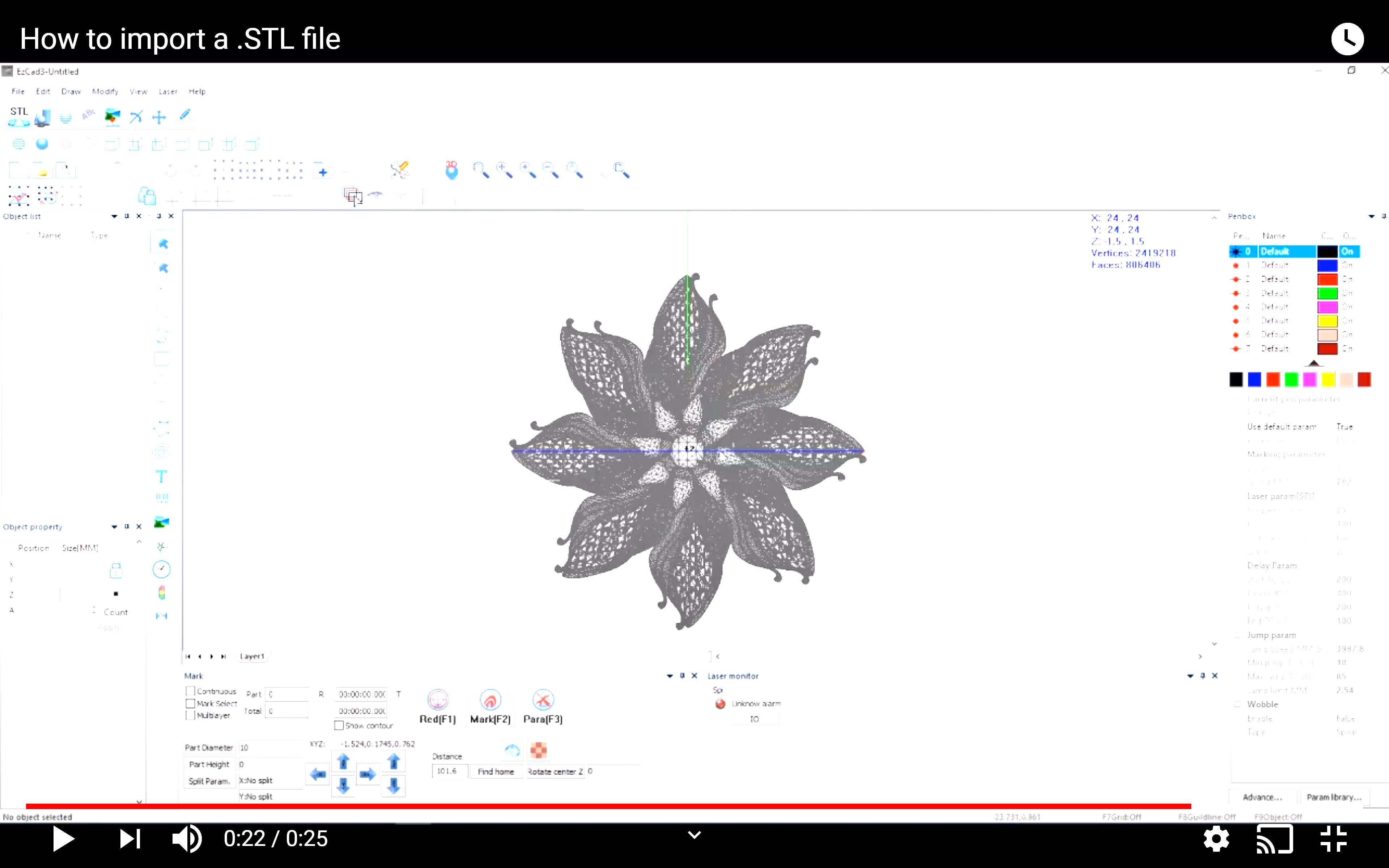
10. How do I insert a vector image file? (VECTOR FILE, INSERT PICTURE, INSERT IMAGE, INSERT VECTOR, ADD VECTOR)

1.Select “file” from the top left corner of the screen
2.Select “import vector file”
3.Browse to where you file is located, and select it
4.Click “open”

Back to top


11. What types of vector image files can I import? (IMAGE FORMATS, ACCEPTED IMAGE FILES)

.ai files (Adobe Illustrator files)
.plt (CAD plotter files)
.dxf (CAD Drawing exchange files)
.dst (CAD Drawing sheets file)

Back to top


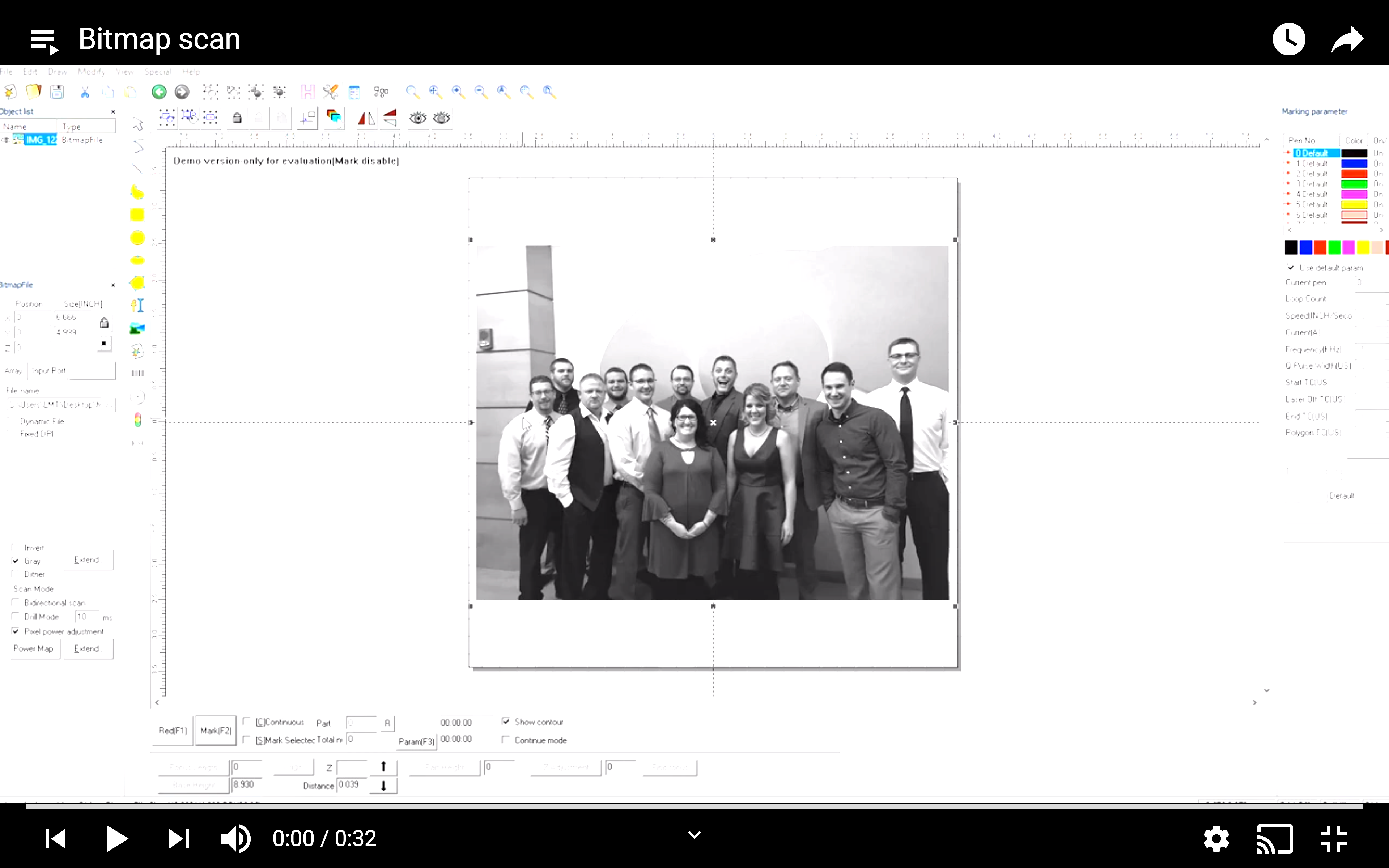
12. How do I insert a non-vector image file?(INSERT PICTURE)

1.Select “file” from the top left corner of the screen
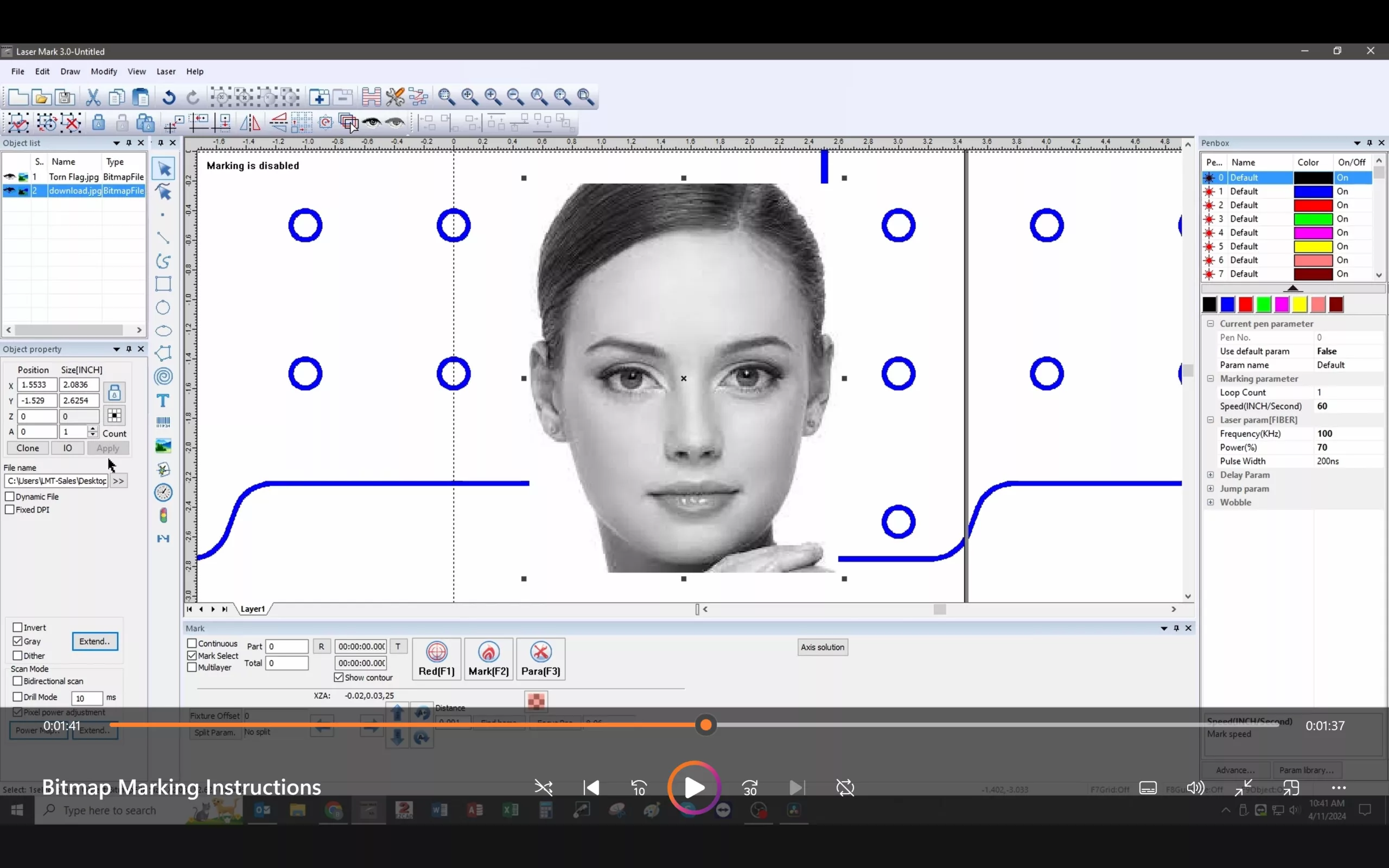
2.Select “import bitmap file”
3.Browse to where your file is located, and select it
4.Click “open”

Back to top


13. What types of non-vector files can I import? (INSERT PICTURE, IMAGE FORMATS, ADD PICTURE)

.bmp
.jpg
.gif
.tga
.png
.tif

Back to top


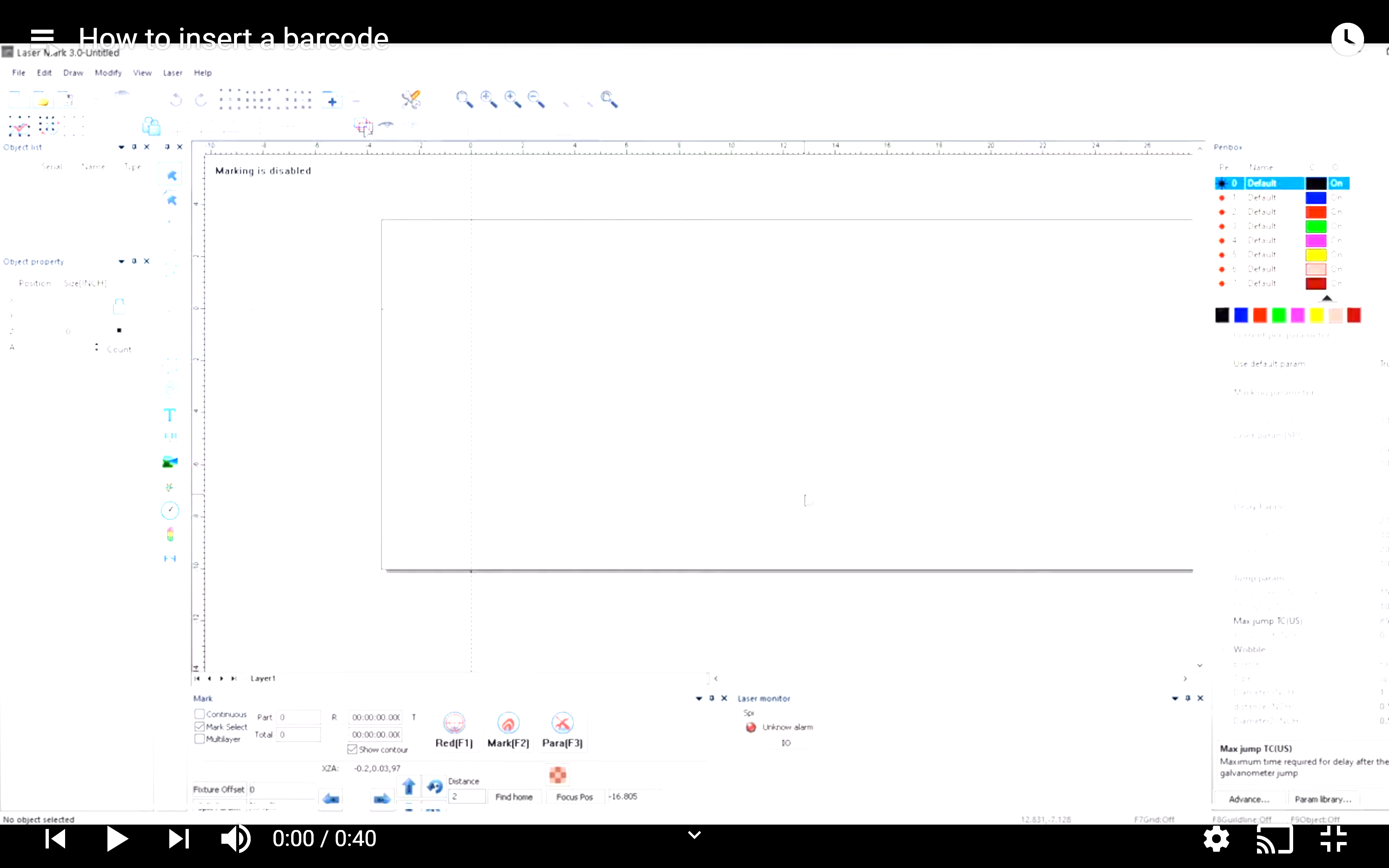
14. do I create a barcode image? (CREATE BARCODE, INSERT BARCODE, ADD BARCODE)

1.Click the “draw text” iconClick on your screen where you would like the barcode image to appear ""

""

Back to top


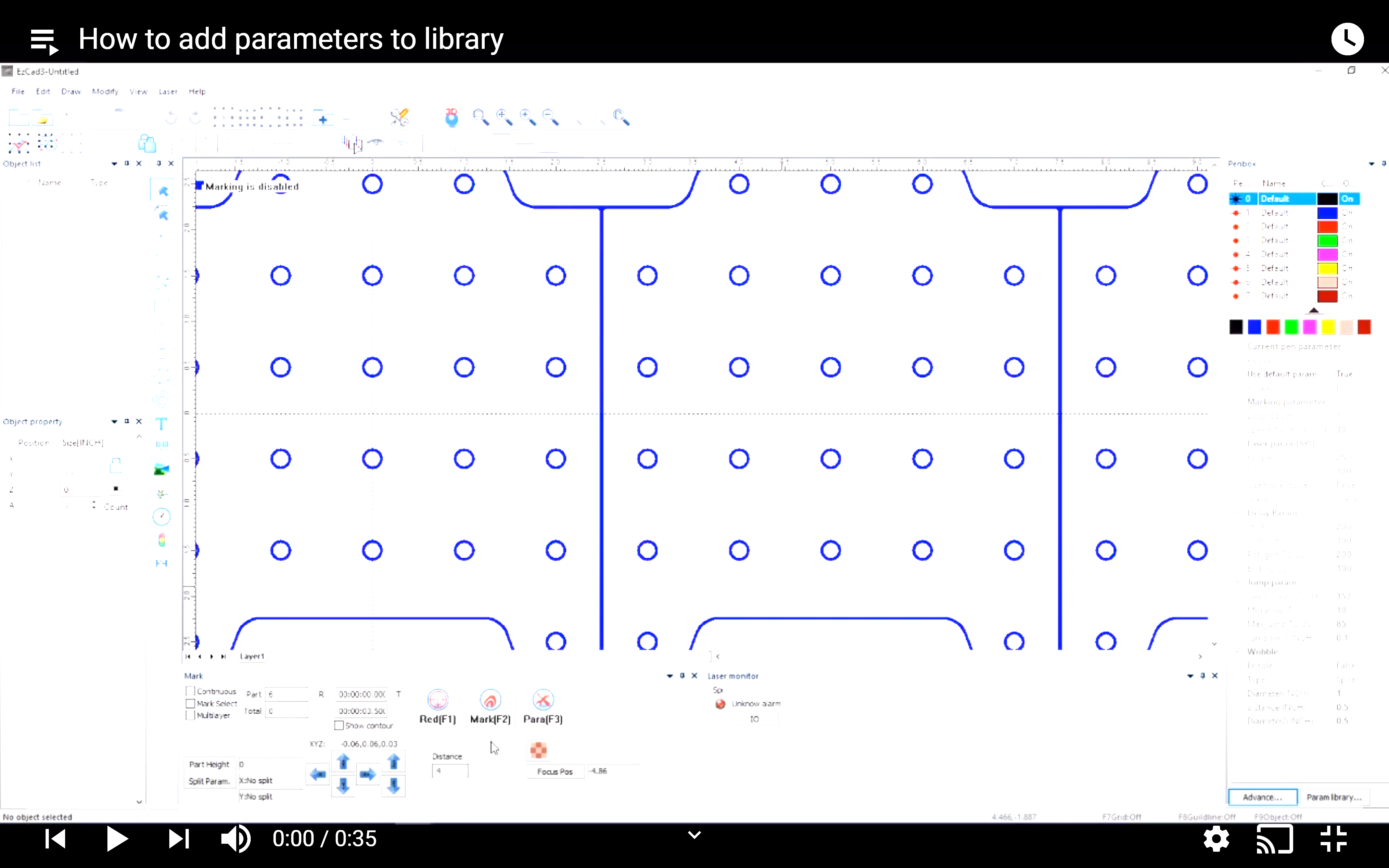
15. What do the different parameter settings do? (PARAMETERS, CHANGE PARAMETERS, LASER SETTINGS)

1.Loop count: How many times the laser will trace each part of your text/image
2.Speed: How fast the laser will move across the marking surface
3.Current: How much power will be used to mark the marking surface
4.The rest of the settings are for more advanced changes, and not necessary for general usage.

Back to top


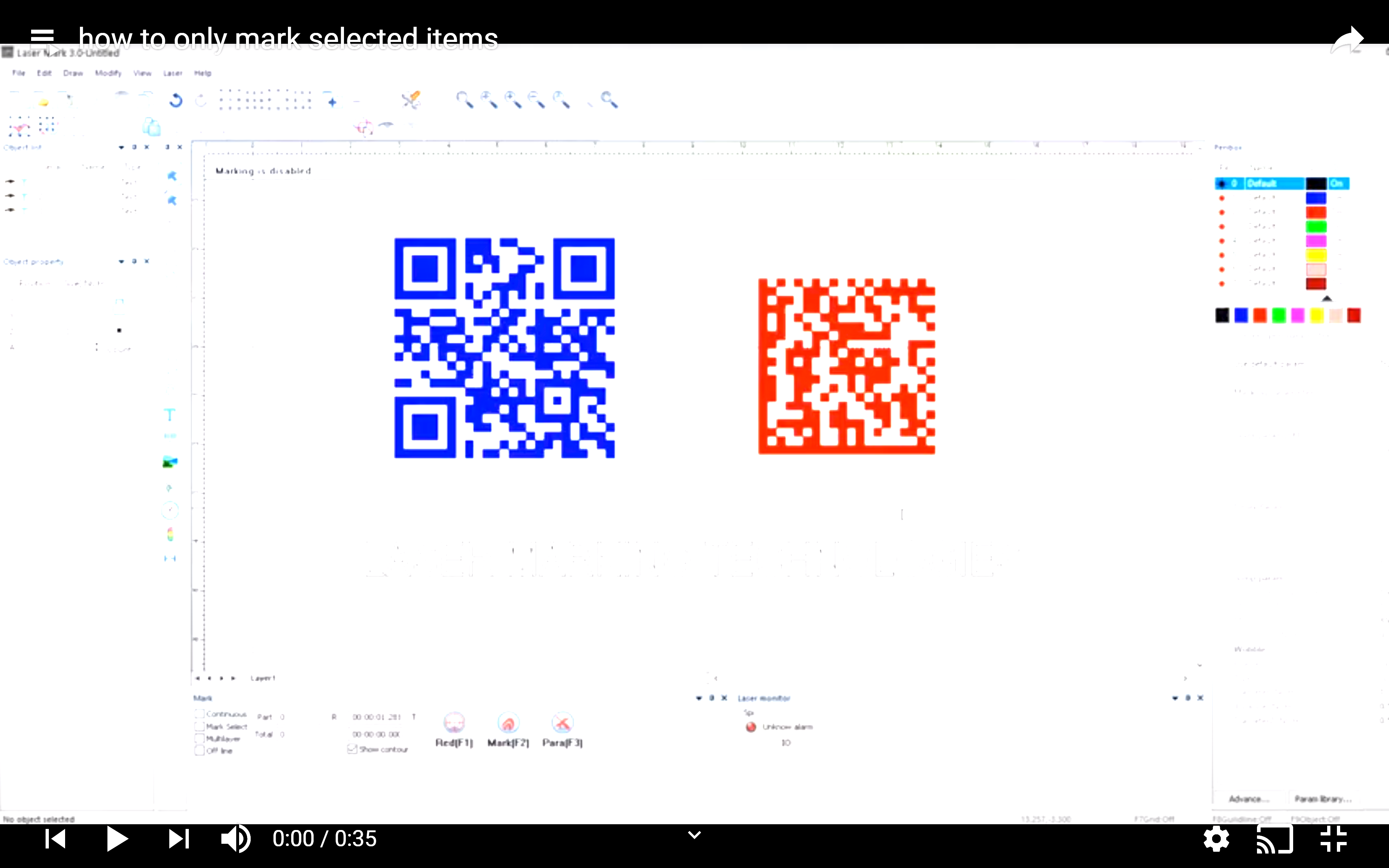
16. How to mark only selected items. (MARK SELECTED)

1.If you have multiple things on your screen, but only want one of them to be marked by the laser, you can use the “Mark Select” function.

Back to top


17. How to save current settings for later use? (SAVE)

1.Click the “file” button in the upper lefthand corner of the screen
2.Click “save as”, and select where you would like to save the file

OR

1.Click the disk icon on the upper lefthand corner of the screen

""

Back to top


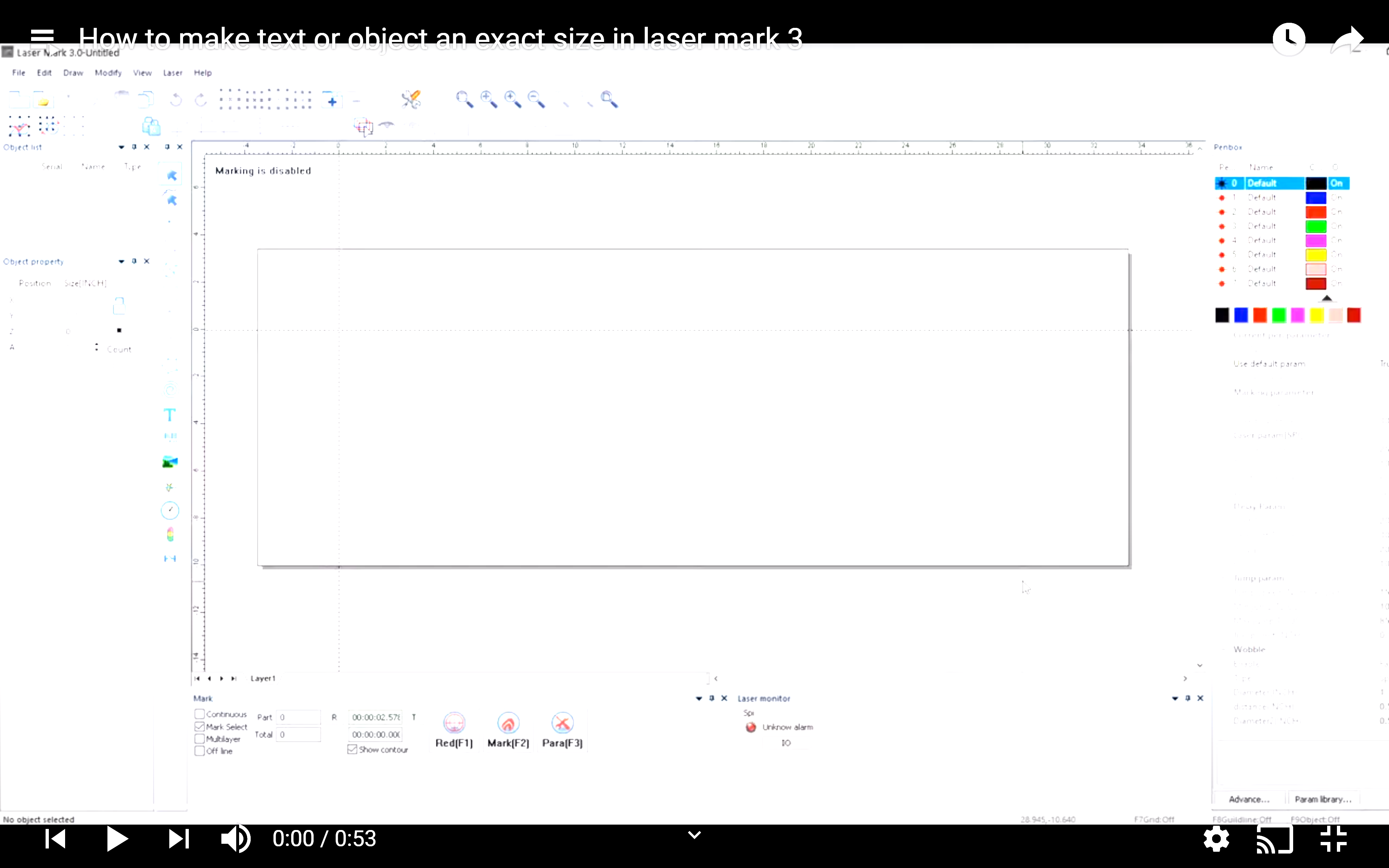
18. How to make an object or text an exact dimension? (CHANGE SIZE, RESIZE)

1.Select the object or text you wish to resize 2.Go the the “text” settings on the lefthand side of the screen

""

Back to top